
3D Printing
News Videos Newsletter Contact us
Home / How to / Convert An Old Mouse To A Nifty Filament Counter
qidi

Convert An Old Mouse To A Nifty Filament Counter

December 13, 2016

Filament Counter

Remember that old mechanical ball PS/2 mouse that’s been gathering dust in your drawer/attic for the last ten years? It might be time to wipe off that dust because there’s actually a really practical use for your vintage mouse if you like to 3D print. A project over at Hackaday has described how one can convert a PS/2 mouse into a filament counter for 3D printing.
Related Story
How to Fuse Filament at Home

Finding out how much filament you’ve used up on a particular print can be quite an eye-opening experience. But it can also be quite economical to keep accurate track of how much filament you use per print, even if the initial results might depress you slightly. Knowing the quantity of filament expended on your prints has the inevitable effect of improving these prints because you’ll put more emphasis on getting it spot-on. This means less wasted filament and smarter printing.

The Process

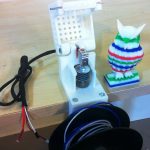
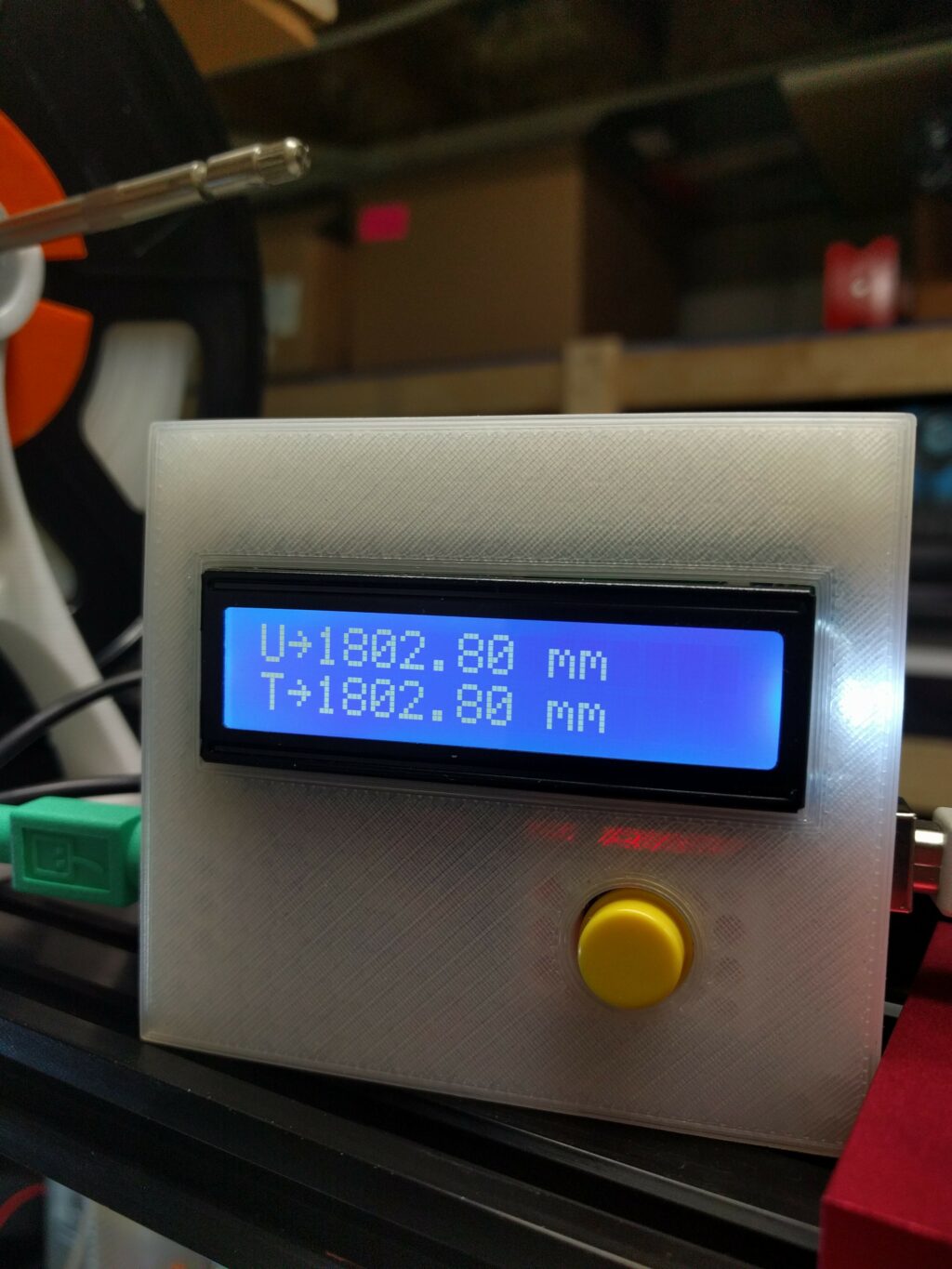
So how exactly do you make a filament counter using a PS/2 mouse? The process begins by stripping down the mouse to its bare essentials and mounting it on a bracket, as per the above image. An Arduino microcontroller is used to communicate with the mouse, displaying the filament count on a small LCD screen.

The filament counter works by connecting the mouse’s encoder wheels to a filament roller. As the filament makes its way to the extruder, the mouse’s electronics process the movement of the encoder. The Arduino unit keeps track of this movement and cumulatively adds up the total filament used. The counter works in both directions, making it extremely practical. When the filament is retracted, this is subtracted from the total figure displayed on the LCD.
Non-Planar FDM 3D Printing
Related Story
No Layer Lines With Non-Planar FDM 3D Printing

There are two distinct rows on the LCD display. The “U” row measures current filament usage in millimeters. The “T” row represents the total filament usage since you began counting. There is also a nifty reset button. One click lets you start the current usage row from zero, which is useful for each new print. A double-click lets you reset the total row for when you’ve moved on to a new roll of filament.

As a result of this quick and easy hack, you can now accurately record how much filament you use when 3d printing. Dedicated filament counters tend to be quite pricey, and they aren’t always accurate. Converting your old PS/2 mouse into a tool for keeping track of filaments is not only practical, but it’s cheap and arguably more accurate.  If you’d like to take a look at the process in motion, check out the below video.
Share:
WhatsApp Twitter Facebook LinkedIn Buffer Reddit E-mail
About the author | Ronan M.
Ronan loves the small pleasures in life such as the first cup of morning coffee and the cold side of the pillow. His other passions include soccer, Thai food, and music.
Join our newsletter

Our newsletter is free & you can unsubscribe any time.

Social

  • Facebook Facebook 3D Printing
  • Linkedin Linkedin 3D Printing
banner
Join our newsletter

Our newsletter is free & you can unsubscribe any time.

Featured Industries

  • Automotive
  • Aerospace
  • Construction
  • Dental
  • Environmental
  • Electronics
  • Fashion
  • Medical
  • Military
  • Anycubic Kobra S1 Combo

    • - Print size: 250 x 250 x 250 mm
    • - budget multicolor printing
    More details »
    $429.00 Anycubic
    Buy Now
  • Snapmaker U1

    • - Print size: 270 x 270 x 270 mm
    • - multi-color printing with SnapSwap
    More details »
    $849.00 Snapmaker
    Buy Now
  • Qidi Max 4

    • - Print size: 390 x 390 x 340 mm
    • - active cooling air control
    More details »
    $1,219.00 Qidi
    Buy Now
  • Flashforge Adventurer 5M

    • - Print size: 220 x 220 x 220 mm
    • - 600mm/s travel speed
    More details »
    $299.00 Flashforge
    Buy Now
  • Flashforge AD5X

    • - Print size: 220 x 220 x 220 mm
    • - dual extrusion system
    More details »
    $399.00 Flashforge
    Buy Now
  • Anycubic Photon Mono M7

    • - Print size: 223 x 126 x 230 mm
    • - 10.1 inch 14K screen
    More details »
    $279.00 Anycubic
    Buy Now
  • Creality K2 Plus

    • - Print size: 350 x 350 x 350 mm
    • - multi-color printing
    More details »
    $1,199.00 Creality
    Buy Now
  • Qidi Q2

    • - Print size: 270 x 270 x 256 mm
    • - enclosed heated chamber up to 65°C
    More details »
    $580.00 Qidi
    Buy Now
  • Creality Hi Combo

    • - Print size: 260 x 260 x 300 mm
    • - up to 16-color printing
    More details »
    $399.00 Creality
    Buy Now
  • Flashforge Guider 3 Ultra

    • - Print size: 330 x 330 x 600 mm
    • - dual extruder system
    More details »
    $2,999.00 Flashforge
    Buy Now

Company Information

  • What is 3D Printing?
  • Contact us
  • Join our mailing list
  • Advertise with us
  • Media Kit
  • Nederland 3D Printing

Blog

  • Latest News
  • Use Cases
  • Reviews
  • 3D Printers
  • 3D Printing Metal

Featured Reviews

  • Anycubic Photon Mono M5s
  • Creality Ender 5 S1
  • The Mole 3D Scanner
  • Flashforge Creator 3 Pro

Featured Industries

  • Automotive
  • Aerospace
  • Construction
  • Dental
  • Environmental
  • Electronics
  • Medical
  • Military
  • Fashion
  • Art
2025 — Strikwerda en Dehue
  • Home
  • Join our mailing list
  • Contact us
Blog
  • Latest News
  • Use Cases
  • Reviews
  • 3D Printers
  • 3D Printing Metal
Featured Industries
  • Automotive
  • Aerospace
  • Construction
  • Dental
  • Environmental
  • Electronics
  • Medical
  • Military
  • Fashion
  • Art
Company Information
  • What is 3D Printing?
  • Contact us
  • Join our mailing list
  • Advertise with us
  • Media Kit
  • Nederland 3D Printing